
QuickBooks Error 15276 is a common payroll update issue that stops users from downloading or installing the latest payroll and QuickBooks updates. QuickBooks displays this error when it cannot verify an update file or when system settings interrupt the update process.
Users often encounter Error 15276 when they update payroll tax tables, download maintenance releases, or install QuickBooks updates. When the error occurs, QuickBooks will stop the update midway, show an error message, or fail to complete the installation.
This error disrupts payroll processing, delays tax calculations, and blocks access to the latest features, security patches, and compliance updates. As a result, businesses struggle to process employee payroll accurately and on time.
In this guide, we will explain the common causes of QuickBooks Error 15276, discuss its warning signs, and share effective troubleshooting methods to fix the issue and restore successful payroll updates.
What is QuickBooks Error Code 15276?
QuickBooks Error 15276 is a payroll update error that prevents QuickBooks from verifying or installing a payroll update file. QuickBooks usually displays this error during payroll tax table updates or QuickBooks maintenance updates and stops the update process before completion.
Users generally receive the following error message during the update process:
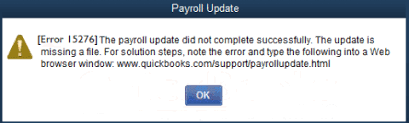
This error blocks payroll updates, interrupts tax table downloads, and restricts access to the latest payroll features, security improvements, and compliance updates.
Why Does QuickBooks Error Code 15276 Occur?
Several system, update, and configuration issues can trigger the QuickBooks 15276 Error Code. Identifying the exact cause helps users apply the correct solution quickly.
Here are some of the common causes:
- Insufficient administrator permissions restrict QuickBooks from installing updates.
- An inactive or invalid payroll subscription blocks payroll update downloads.
- Corrupted QuickBooks update files interfere with the update process.
- Damaged QuickBooks program files prevent the successful installation of updates.
- Antivirus or security software blocks QuickBooks update components.
- Incorrect Internet Explorer settings disrupt communication with Intuit servers.
- Missing or outdated digital signature certificates prevent update verification.
- Background QuickBooks processes lock update files and stop file replacement.
- Outdated QuickBooks Desktop versions create compatibility issues with payroll updates.
- Interrupted or incomplete update downloads leave damaged update files on the system.
Common Signs of QuickBooks Error 15276
Users usually notice several warning signs before or during the payroll update process. These symptoms indicate that QuickBooks cannot complete the update successfully.
- QuickBooks displays Error 15276 during payroll updates.
- Payroll tax table updates fail repeatedly.
- QuickBooks stops the update process before completion.
- An update file remains stuck during download or installation.
- Users cannot access the latest payroll features and tax changes.
- QuickBooks freezes or becomes unresponsive while updating.
- The software displays messages related to update verification failures.
- Payroll updates download partially and then stop unexpectedly.
- QuickBooks repeatedly prompts users to install the same update.
- The system experiences slower performance during update attempts.
Methods to Fix QuickBooks Error 15276
Identify the cause of Error 15276 in QuickBooks and apply the appropriate solution to resolve it. Follow the steps below in order until QuickBooks downloads and installs the payroll update successfully.
Method 01: Restart Your Computer and Retry the Payroll Update
A simple system restart clears temporary glitches, closes unnecessary background tasks, and helps QuickBooks complete the payroll update without interruptions.
- Save your work, then close QuickBooks and all running applications.
- Shut down your computer completely instead of selecting the restart option.
- Wait for about one minute before turning the system back on.
- Right-click the QuickBooks Desktop icon and select Run as Administrator.
- Open the Employees menu and click Get Payroll Updates.
- Select Download Entire Payroll Update and click Update to fix QuickBooks Desktop Error 15276.
Method 02: Run QuickBooks as Administrator
Administrator privileges allow QuickBooks to access and update files and system resources required for payroll updates. Follow the given steps to resolve error 15276 in QBDT:
- Close QuickBooks Desktop if it is already running.
- Locate the QuickBooks Desktop shortcut on your computer.
- Right-click the QuickBooks icon and select Run as Administrator.
- Click Yes if Windows displays the User Account Control prompt.
- Wait for QuickBooks to open with elevated permissions.
- Download the payroll update again and check for the error.
Method 03: Verify Internet Explorer Settings
QuickBooks uses Internet Explorer settings to connect to Intuit servers and successfully download payroll updates.
- Open Internet Explorer and press Alt to display the menu bar.
- Click Tools and select Internet Options from the menu.
- Open the General tab and delete temporary Internet files.
- Navigate to the Connections tab and click LAN Settings.
- Select Automatically Detect Settings and clear unnecessary proxy entries.
- Open the Advanced tab and verify that TLS 1.2 is enabled and SSL settings are configured correctly.
- Save the changes and close the Internet Options window.
- Restart your computer and retry the payroll update.
Method 04: Update QuickBooks Desktop to the Latest Release
An outdated QuickBooks version can create compatibility issues and prevent payroll updates from installing correctly.
- Open QuickBooks Desktop on your computer.
- Click the Help menu and select Update QuickBooks Desktop.
- Navigate to the Update Now tab in the update window.
- Select the available updates and click Get Updates.
- Allow QuickBooks to download and install the latest release.
- Restart QuickBooks after the update process finishes.
- Download the payroll update again and verify the result.
Method 05: Verify and Revalidate Your Payroll Service Key
QuickBooks requires an active payroll subscription and a valid service key to download payroll updates successfully. Follow these steps to fix QuickBooks Error 15276:
- Open QuickBooks Desktop and sign in to your company file.
- Click the Employees menu and select My Payroll Service.
- Choose Manage Service Key from the available options.
- Review the payroll service key and subscription status carefully.
- Remove the existing key if QuickBooks displays an incorrect or inactive status.
- Enter the correct payroll service key and save the changes.
- Download the payroll update again and check whether the error disappears.
Method 06: Reset QuickBooks Updates and Download Fresh Files
Resetting update files removes damaged update data and forces QuickBooks to download a fresh update package. Perform these steps to repair Error Code 15276:
- Close QuickBooks Desktop completely before starting the process.
- Reopen QuickBooks with administrator privileges.
- Click the Help menu and select Update QuickBooks Desktop.
- Open the Update Now tab in the update window.
- Select the Reset Update checkbox to clear existing update files.
- Click Get Updates and allow QuickBooks to download fresh updates.
- Restart QuickBooks after the download process finishes.
- Download the payroll update again and verify the result.
Method 07: End All QuickBooks Background Processes
Background QuickBooks processes can lock update files and prevent QuickBooks from completing payroll updates.
- Press Ctrl + Shift + Esc to open Task Manager.
- Open the Processes or Details tab based on your Windows version.
- Locate QuickBooks-related processes running in the background.
- Select each QuickBooks process and click End Task.
- Close Task Manager after ending all related processes.
- Reopen QuickBooks with administrator rights.
- Retry the payroll update and verify the outcome.
Method 08: Temporarily Disable Antivirus and Security Software
Security programs sometimes block QuickBooks update files and interrupt the payroll update process.
- Locate your antivirus icon in the Windows notification area.
- Right-click the antivirus icon and choose the disable option.
- Select a temporary duration for the security pause.
- Open QuickBooks Desktop after disabling the antivirus.
- Download the payroll update and monitor the process.
- Enable the antivirus again after completing the update.
Method 09: Repair the QuickBooks Desktop Installation
A damaged QuickBooks installation can block payroll updates and generate update-related errors.
- Press Windows + R and type appwiz.cpl in the Run box.
- Locate QuickBooks Desktop in the Programs and Features window.
- Select QuickBooks and click Uninstall/Change.
- Choose the Repair option from the installation wizard.
- Follow the on-screen instructions to complete the repair.
- Restart your computer after the repair process finishes.
- Open QuickBooks and download the payroll update again.
Method 10: Use QuickBooks Tool Hub
QuickBooks Tool Hub helps identify and repair common program issues that interfere with payroll updates. To fix QuickBooks Error 15276, proceed with the given steps:
- Download the latest version of QuickBooks Tool Hub from Intuit.
- Install the tool and launch it on your computer.
- Select Program Problems from the left panel.
- Click Quick Fix my Program and start the repair process.
- Wait until the tool finishes repairing QuickBooks components.
- Open QuickBooks again after the repair completes.
- Download the payroll update and check for the error.
Method 11: Delete Corrupted Update Files and Download Fresh Updates
Damaged update files can repeatedly trigger Error 15276 until QuickBooks replaces them with fresh copies.
- Close QuickBooks Desktop completely before making changes.
- Open File Explorer and navigate to the QuickBooks Components folder or download cache.
- Remove damaged update files before downloading fresh updates.
- Remove temporary update components related to QuickBooks.
- Empty the Recycle Bin to clear the deleted files permanently.
- Launch QuickBooks again after removing the files.
- Download a fresh payroll update from the QuickBooks update window.
Method 12: Reinstall the QuickBooks Digital Signature Certificate
QuickBooks relies on a valid digital signature certificate to verify payroll update files and complete the update process securely.
- Open File Explorer and navigate to the QuickBooks installation folder.
- Locate the QuickBooks executable file and right-click it.
- Select Properties and open the Digital Signatures tab.
- Choose Intuit Inc. from the list of available signatures.
- Click Details and select View Certificate.
- Click Install Certificate and proceed with the installation wizard.
- Complete the installation and restart your computer.
- Open QuickBooks and download the payroll update again.
Method 13: Manually Download the Payroll Update
A manual payroll update bypasses automatic update issues and installs the latest payroll files directly. Follow the given steps to fix QuickBooks Error 15276:
- Download the latest payroll update package from the official Intuit website that matches your QuickBooks Desktop version and year.
- Select your QuickBooks Desktop version and release year.
- Download the latest payroll update file to your computer.
- Close QuickBooks before running the downloaded file.
- Right-click the update file and select Run as Administrator.
- Complete the installation by following the on-screen instructions.
- Open QuickBooks and verify that the payroll update installs successfully.
Method 14: Perform a Clean Reinstall of QuickBooks Desktop
A clean reinstall removes damaged program files and installs a fresh copy of QuickBooks on the system.
- Create a backup of your company file before starting the process.
- Note your QuickBooks license and product information.
- Uninstall QuickBooks Desktop from Programs and Features.
- Run the QuickBooks Clean Install Tool to remove leftover files.
- Download a fresh QuickBooks installation file from Intuit.
- Install QuickBooks Desktop and activate it using your license details.
- Open QuickBooks and download the latest payroll updates.
Best Practices to Prevent QuickBooks Error 15276
Following a few maintenance practices helps reduce update-related issues and keeps payroll updates running smoothly.
- Update QuickBooks Desktop regularly to install the latest fixes and improvements.
- Download payroll updates as soon as Intuit releases them.
- Run QuickBooks with administrator privileges during updates.
- Keep your payroll subscription active and verify service key details periodically.
- Install the latest QuickBooks digital signature certificates.
- Configure antivirus and firewall settings to allow QuickBooks processes.
- Clear temporary files and outdated update files regularly.
- Maintain a stable internet connection while downloading updates.
- Close unnecessary background applications before starting payroll updates.
- Use QuickBooks Tool Hub to detect and fix program issues proactively.
- Verify Internet Explorer settings and security configurations periodically.
- Create regular backups and keep the QuickBooks program files in good condition.
Conclusion
We hope this guide helped you identify and fix QuickBooks Error 15276. Permission restrictions, corrupted update files, inactive payroll subscriptions, damaged QuickBooks components, and incorrect system settings often trigger this payroll update error. Follow the troubleshooting methods discussed in this guide to resolve the issue, including updating QuickBooks, verifying your payroll service key, repairing program files, and installing payroll updates correctly. These solutions help QuickBooks complete payroll updates successfully and keep your payroll data accurate and up to date.
 +1-800-961-4963