

QuickBooks Web Connector Error QBWC1085 can interrupt your regular accounting work and appear when you open QuickBooks Desktop. The error is related to the communication between QuickBooks Desktop and Web Connector, which supports connections with web-based applications.
A sudden error message can make it difficult to access the connected services and continue your work. This guide explains QBWC1085 in simple terms and provides practical ways to fix Web Connector Error QBWC1085 in QuickBooks Desktop.
What Is QuickBooks Web Connector Error QBWC1085?
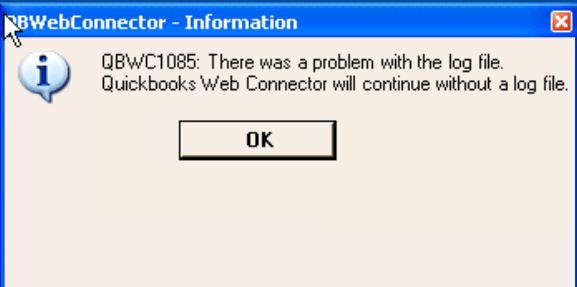
QuickBooks Web Connector is a Windows-based application that connects QuickBooks Desktop with supported third-party web applications. QBWC1085 appears when Web Connector has a problem accessing or writing to its QWCLOG.TXT file.
You may see messages such as:
- “QBWC1085: There was a problem with the log file. QuickBooks Web Connector will continue without the log file.”
- “QBWC1085: QuickBooks was unable to write to the log file.”
- “Exception TypeError: Unknown name.”
What Causes QuickBooks Error QBWC1085?
QuickBooks Web Connector log file error mainly occurs when Web Connector cannot access or write to its log file.
Common causes include:
- Damaged QWCLOG.TXT File: A damaged log file prevents Web Connector from writing the required information.
- Missing QWCLOG.TXT File: Web Connector cannot work properly when the required log file is missing.
- Log File Access Issues: Windows permissions or file access problems may prevent Web Connector from accessing the log file.
- Third-Party Application Connection Issues: A connected third-party application may require Web Connector to remain active during QuickBooks operations.
- Web Connector Problems: Missing or damaged Web Connector components may affect its normal operation.
Prerequisites to Fix QuickBooks Web Connector Error QBWC1085
Before troubleshooting the QuickBooks Web Connector error 1085, complete these basic checks to avoid interruptions during the repair process:
- Close QuickBooks Desktop and QuickBooks Web Connector.
- Sign in to Windows with administrator privileges.
- Create a backup of your QuickBooks company file.
- Keep a stable internet connection for updates and downloads.
- Keep your QuickBooks login details ready when required.
How to Fix Web Connector Error QBWC1085 in QuickBooks Desktop?
The right troubleshooting approach depends on the cause of QBWC1085 and your Web Connector setup. Now, you can try the following methods to resolve the error and restore normal QuickBooks Desktop operations.
Method 1: Repair QuickBooks Desktop to Fix QBWC1085
A damaged QuickBooks Desktop installation may prevent the application from working properly. The repair feature replaces damaged program files and helps restore normal operation.
Follow these steps to repair QuickBooks Desktop:
- Restart your computer before you begin the repair process.
- Click the Start button and open Control Panel.
- Select Programs and Features.
- Click Uninstall a Program when the option appears.
- Select QuickBooks Desktop from the list of installed programs.
- Click Uninstall/Change.
- Select Continue and then choose the Repair option.
- Click Next and allow QuickBooks to complete the repair process.
- Click Finish after the repair completes.
- Restart QuickBooks Desktop and check if the QBWC1085 error still appears.
Method 2: Rename the QWCLOG.TXT File
A damaged or inaccessible QWCLOG.TXT file may trigger QBWC1085. Rename the file to create a fresh log file for Web Connector.
Here is how to fix QBWC1085 in QuickBooks:
- Close QuickBooks Desktop and QuickBooks Web Connector.
- Open File Explorer and go to: C:\ProgramData\Intuit\QBWebConnector\log
- Find QWCLOG.TXT.
- Right-click the file and select Rename.
- Change its name to QWCLOGOLD.TXT.
- Start QuickBooks Web Connector again.
- Open QuickBooks Desktop and sign in to your connected third-party application.
- Check if the QBWC1085 error still appears.
Method 3: Remove QuickBooks Web Connector from the Startup Folder
This method works when QuickBooks Desktop does not use Web Connector to connect with any third-party application. Removing Web Connector from the Windows Startup folder stops it from launching at startup and helps prevent the QBWC1085 QuickBooks Desktop error.
- Sign in to Windows with administrator privileges.
- Open the following folder path: C:\ProgramData\Microsoft\Windows\Start Menu\Programs\Startup
- Locate QuickBooks Web Connector in the Startup folder.
- Right-click QuickBooks Web Connector and select Delete.
- Restart your computer.
- Open QuickBooks Desktop and check if the QBWC1085 error still appears.
Alternative Method to Remove QB Web Connector from Startup
- Sign in to Windows with an administrator account.
- Type MSConfig in the Windows search box and press Enter.
- Select the Startup tab in the System Configuration window.
- Find QuickBooks Web Connector in the list.
- Clear the checkbox next to QuickBooks Web Connector.
- Click Apply, then select OK.
- Restart your computer and open QuickBooks Desktop.
Note: This method disables Web Connector through MSConfig, while the previous method removes Web Connector from the Startup folder.
Method 4: Update QuickBooks Desktop
An outdated QuickBooks Desktop version may interfere with Web Connector and third-party application connections. Install the latest available QuickBooks Desktop updates and check the error again.
- Open QuickBooks Desktop.
- Select Help from the top menu.
- Click Update QuickBooks Desktop.
- Select the Update Now tab.
- Select Get Updates.
- Restart QuickBooks Desktop after the update finishes.
- Check if QBWC1085 still appears.
Method 5: Run the Quick Fix My Program Tool
The Quick Fix My Program tool from QuickBooks Tool Hub closes background QuickBooks processes and repairs issues that affect the program.
- Visit the official Intuit website and download the QuickBooks Tool Hub.
- Save the QuickBooksToolHub.exe file to your preferred location.
- Double-click the downloaded file to start the installation.
- Follow the on-screen instructions to complete the installation.
- Accept the terms and conditions and select OK.
- Open QuickBooks Tool Hub from the desktop.
- Select Program Problems from the left menu.
- Click Quick Fix My Program.
- Let the tool scan QuickBooks and repair any program-related issues.
- Open QuickBooks Desktop again.
- Check if the QBWC1085 error has been resolved.
A missing Web Connector entry in Windows Startup may cause QBWC1085 when you use a third-party application. Add Web Connector to Startup to restore its automatic launch.
- Press Windows + R to open the Run window.
- Type msconfig and click OK.
- Select the Startup tab.
- Find QuickBooks Web Connector in the list and select its checkbox.
- Click Apply, then select OK.
- Restart Windows.
- Open QuickBooks Desktop and check the Web Connector connection.
- Note: This method applies mainly to users who connect QuickBooks Desktop with a third-party application through Web Connector to fix Web Connector Error QBWC1085.
How to Prevent QuickBooks Web Connector Error QBWC1085?
Follow these preventive measures to keep QuickBooks Web Connector working properly and reduce the risk of QBWC1085:
Keep QuickBooks and Web Connector Updated
Install the latest available updates to maintain compatibility between QuickBooks and connected applications.
Use a Reliable Internet Connection
A stable connection helps prevent sync failures and connection interruptions.
Review Firewall and Antivirus Settings
Add QuickBooks and Web Connector to the allowed list in your security software to prevent unwanted blocking.
Run Only One Web Connector Session
Keep a single Web Connector instance active to avoid conflicts between multiple sessions.
Verify the Company File Regularly
Use QuickBooks verification and rebuild tools to identify and fix data issues that could affect Web Connector.
Check Windows System Files
Run the System File Checker tool to detect and repair damaged Windows system files.
Final Words
QuickBooks Web Connector Error QBWC1085 often occurs when QuickBooks Desktop cannot access the QWCLOG.TXT file properly. The appropriate solution to fix Web Connector Error QBWC1085 depends on how you use Web Connector. Rename the log file when a third-party application relies on Web Connector. Remove Web Connector from the Startup folder when you do not use any third-party connection. Update QuickBooks Desktop and run QuickBooks Tool Hub when the error continues.
Frequently Asked Questions
Why does QBWC1085 appear when Windows starts?
QBWC1085 may appear during Windows startup when QuickBooks Web Connector launches and cannot access or write to its log file. A damaged or inaccessible QWCLOG.TXT file is a common reason for this behavior.
Does QBWC1085 affect QuickBooks company data?
QBWC1085 primarily affects the Web Connector log file. The error itself does not indicate that your QuickBooks company data is damaged. A backup remains recommended before troubleshooting.
Does QuickBooks Web Connector need to run all the time?
Web Connector needs to run when a third-party application depends on it to exchange data with QuickBooks Desktop. Users who do not use a Web Connector-based application do not need it to launch with Windows.
What does “Exception TypeError: Unknown name” mean in QBWC1085?
This message is another form of the QBWC1085 error. It usually indicates a problem with the Web Connector log file rather than a separate QuickBooks error.
Can I reinstall QuickBooks Web Connector to fix QBWC1085?
Reinstalling Web Connector is not the first troubleshooting option for QBWC1085. Check the QWCLOG.TXT file and Web Connector startup settings first. Reinstallation becomes relevant when Web Connector itself has damaged or missing components.
 +1-800-961-4963