

When QuickBooks Error 6147 appears, it can prevent you from opening, restoring, or accessing your company file in QuickBooks Desktop. The error usually occurs when QuickBooks has issues with the company file location, file access, network connection, or the backup restoration process.
You can encounter messages such as:
- QuickBooks is unable to open this company file.”
- “An error occurred when trying to open the company file (-6147, 0).”
- “QuickBooks is unable to open this company file. (-6147, 0)”
- “Warning: The backup file is corrupted, incomplete, or damaged.”
As a result, you cannot access financial records, complete accounting tasks, or restore important company data. If you encounter this error, identifying its underlying cause is important before attempting repairs, especially when the company file contains critical financial information. In this guide, we’ll discuss what QuickBooks Error 6147 means, when it occurs, its common causes, and the methods you can use to fix it in QuickBooks Desktop.
What is QuickBooks Desktop Error Code 6147?
QuickBooks Error 6147 is a company file error in QuickBooks Desktop that prevents the software from opening or restoring a company file. It can occur when you open a .QBW company file or restore a .QBB backup, and QuickBooks cannot complete the requested operation.
When the error occurs, QuickBooks can show Error -6147, 0. The cause can be an invalid path to the file, a corrupted company file, permissions on the folder, a network configuration issue, or a problem with the backup file.
What are the Causes of QuickBooks Error 6147?
QuickBooks Error 6147 occurs when QuickBooks Desktop cannot access, open, or restore a company file because of file, path, backup, network, or permission issues.
Here are the common causes of the QuickBooks Desktop Error 6147:
- Corrupted or incomplete QuickBooks backup file (.QBB)
- Company file or folder path exceeds the supported character limit
- Damaged .ND or .TLG files associated with the company file
- Company file or backup stored on a USB, external drive, network drive, or server location
- Missing read and write permissions for the QuickBooks file folder
- Firewall or antivirus software restricting QuickBooks processes
- Unstable network connection when accessing a company file remotely
- Issues with QuickBooks Database Server Manager in a multi-user setup
- Damaged QuickBooks Desktop installation or program components
What are the Signs & Symptoms of the Error Message 6147 in QuickBooks Desktop?
QuickBooks Error 6147 shows up when QuickBooks Desktop cannot open or restore a company file, and it can also cause the application or connected network functions to stop responding.
Here are the key signs and symptoms of QuickBooks Desktop Error Code 6147:
- QuickBooks displays “Error -6147, 0: QuickBooks is unable to open this company file.”
- QuickBooks fails to open a .QBW company file or restore a .QBB backup.
- QuickBooks hangs or becomes unresponsive, or quits unexpectedly during company data loading.
- The computer becomes slow, and other programs respond at a snail’s pace.
- The mouse or keyboard can stop responding in QuickBooks.
- Multi-user mode does not establish proper connections with other workstations.
- Network-based company files become corrupted or fail.
What are the Prerequisites to Fix QuickBooks Error Code 6147?
Before fixing error 6147, create a recent backup, close QuickBooks Desktop, sign in as an administrator, verify the company file path, and prepare QuickBooks Tool Hub.
Here are the key prerequisites to fix QuickBooks Desktop Error 6147:
| Parameters | Details |
|---|---|
| Administrator Access | Sign in to Windows with an administrator account to modify files and run QuickBooks diagnostic tools. |
| QuickBooks Status | Close QuickBooks Desktop on all workstations and ensure no users are accessing the company file. |
| Company File Backup | Create a recent backup of the company file before applying any troubleshooting method. |
| File Path | Check that the company file path does not exceed the supported character limit of about 210 characters. |
| Backup Location | Store the .QBB backup file on a local drive before attempting to restore it. |
| Company File | Identify the correct .QBW company file and confirm its current storage location. |
| QuickBooks Tool Hub | Install the official QuickBooks Tool Hub to access diagnostic tools such as QuickBooks File Doctor. |
| Security Settings | Check antivirus and firewall settings and allow QuickBooks through them when they restrict file access. |
| Multi-User Access | Ask all users to exit the company file before performing troubleshooting or repair steps. |
What are the Proven Methods to Fix QuickBooks Error Code 6147?
You can resolve QuickBooks Error 6147 by repairing company-file issues, correcting its storage location, checking network access, and restoring a valid backup when necessary. Start with the least invasive method and create a backup before making changes to your company file. Here are the effective methods to fix QuickBooks Desktop Error Code 6147.
Method 1: Run QuickBooks File Doctor
QuickBooks File Doctor diagnoses common company file and network issues that could prevent QuickBooks Desktop from opening a company file.
Follow these steps to run QuickBooks File Doctor:
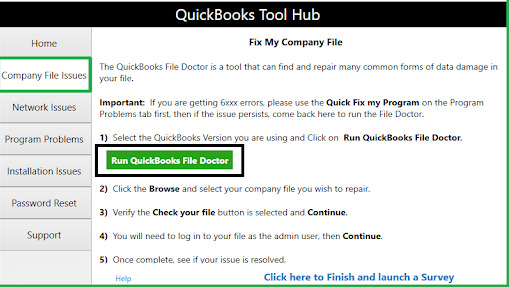
- Close QuickBooks Desktop.
- Download and install the latest QuickBooks Tool Hub from Intuit.
- Open QuickBooks Tool Hub.
- Select Company File Issues.
- Click Run QuickBooks File Doctor.
- Select the affected company file or browse to its location.
- Choose the option to check the company file and network.
- Enter your QuickBooks administrator password if prompted.
- Click Next and allow the diagnostic process to complete.
- Reopen QuickBooks Desktop and check whether you can access the company file.
Method 2: Move the Company File to a Local Drive
A company file stored on a network, USB device, or external drive can encounter access problems.
Here is how to test the company file from a local location:
- Close QuickBooks Desktop.
- Locate the .QBW company file in Windows File Explorer.
- Right-click the file and select Copy.
- Create a simple folder on the local drive, such as C:\QuickBooks.
- Paste a copy of the company file into this folder.
- Open QuickBooks Desktop.
- Select File > Open or Restore Company.
- Choose Open a company file.
- Browse to the copied .QBW file.
- Open the file and check whether QuickBooks displays Error 6147.
If the local copy opens normally, the original network location, folder permissions, or network configuration require further troubleshooting.
Method 3: Verify and Rebuild the Company File
The Verify Data utility looks for data integrity problems in the company file, whereas the Rebuild Data utility tries to fix certain problems that QuickBooks has detected.
Use the following steps to verify and rebuild your company file:
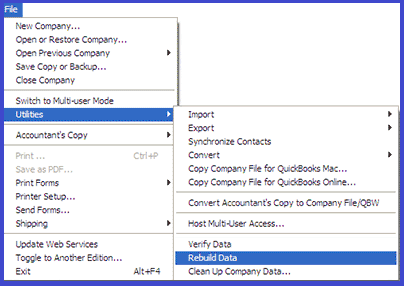
- Open QuickBooks Desktop.
- Select File > Utilities > Verify Data.
- Allow QuickBooks to complete the verification.
- Review the results after the check finishes.
- If QuickBooks reports a data problem, select File > Utilities > Rebuild Data.
- Follow the prompt to create a backup of your company file.
- Select the location for the backup if QuickBooks asks you to do so.
- Start the rebuild process.
- Wait until QuickBooks completes the operation.
- Reopen the company file and check whether the error remains.
If QuickBooks temporarily shows “QuickBooks is not responding,” do not close the application immediately. The rebuild process can take time.
Method 4: Rename the .ND and .TLG Files
The .ND and .TLG files accompany the QuickBooks company file and support network and transaction-related operations.
Use these steps to rename the associated files:
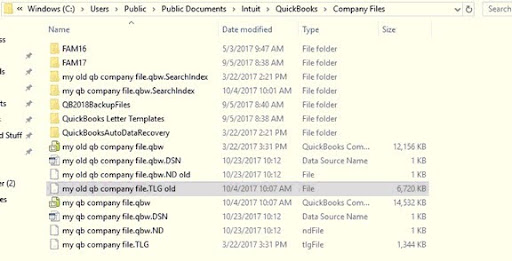
- Close QuickBooks Desktop on all computers accessing the company file.
- Open the folder containing your .QBW company file.
- Find the .ND file with the same base name as your company file.
- Locate the corresponding .TLG file.
- Right-click the .ND file and select Rename.
- Add .OLD to the end of its filename.
- Repeat the process for the .TLG file.
- Open QuickBooks Desktop.
- Select the affected company file.
- Check whether QuickBooks opens the file without Error 6147.
For example, you can rename CompanyFile.qbw.nd to CompanyFile.qbw.nd.old.
Method 5: Check and Correct the Company File Path
If the file path is incorrect or too long, the company file cannot be opened or located by QuickBooks Desktop. A simplified path can help avoid file-location problems.
Check and correct the company file location as follows:
- Open QuickBooks Desktop.
- Press F2 to open the Product Information window.
- Note the company file location shown under File Information.
- Open the same location in Windows File Explorer.
- Confirm that the correct .QBW file exists.
- Review the complete folder and file path.
- Move a copy of the company file to a simple local folder if the current path is unnecessarily long or complex.
- Open QuickBooks Desktop.
- Select File > Open or Restore Company.
- Browse to the new location and open the company file.
Avoid changing the original company file until you confirm that the copied file works correctly.
Method 6: Check Folder Permissions and Antivirus Settings
QuickBooks requires the correct permissions to the folder where the company file is located. That access can be blocked by Windows permissions, antivirus programs, or firewalls.
Follow these steps to check the file folder and security settings:
- Identify the folder containing the .QBW company file.
- Right-click the folder and select Properties.
- Open the Security tab.
- Confirm that the required Windows user accounts have appropriate access to the folder.
- Check your antivirus or security software.
- Open its Exceptions, Exclusions, or Allow List settings.
- Add the QuickBooks company file folder to the approved list when appropriate.
- Check the firewall settings for QuickBooks access.
- Save the changes.
- Restart QuickBooks Desktop and try opening the company file again.
Do not permanently disable antivirus or firewall protection just to test the error. Use appropriate exclusions or allow rules instead.
Method 7: Rescan the Company File With QuickBooks Database Server Manager
If your company file resides on a server, QuickBooks Database Server Manager can scan the storage folder and update QuickBooks’ access information.
Here are the steps to rescan the company file folder:
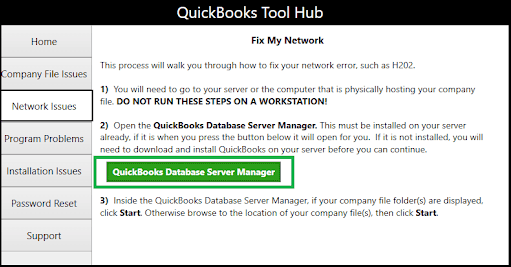
- Open QuickBooks Database Server Manager on the server.
- Select Add Folder.
- Browse to the folder containing the company file.
- Select the appropriate folder.
- Click OK.
- Select Scan.
- Wait for the scan to finish.
- Confirm that QuickBooks detects the company file.
- Open QuickBooks Desktop on a workstation.
- Try accessing the company file again.
Method 8: Check QuickBooks Hosting and Multi-User Settings
Improper hosting setup can lead to workstations being unable to open a company file that is stored on a server.
Review the hosting configuration using these steps:
- Open QuickBooks Desktop on the server.
- Select File > Utilities.
- Review the available hosting options.
- Confirm that the server is configured to host the company file.
- Check the same settings on the workstations.
- Make sure workstations are not incorrectly configured to host the company file.
- Confirm that the server and workstations can communicate over the network.
- Open the company file in Multi-User Mode.
- Have another workstation connect to the file.
- Check whether Error 6147 still appears.
Method 9: Restore a Recent QuickBooks Backup
If the original company file remains inaccessible after troubleshooting, restoring a recent .QBB backup can provide a working copy of your accounting data.
Follow these steps to restore a local backup and fix QuickBooks Desktop Error Code 6147:
- Copy the .QBB backup file to a local drive.
- Open QuickBooks Desktop.
- Select File > Open or Restore Company.
- Choose Restore a backup copy.
- Click Next.
- Select Local backup.
- Browse to the .QBB file.
- Select the backup and click Open.
- Choose a new location and filename for the restored .QBW file.
- Select Save and complete the restoration.
- Open the restored company file.
- Verify the accounting records before continuing regular work.
Do not overwrite your original .QBW file until you have confirmed that the restored backup contains the required data.
Method 10: Recover the Company File From an ADR Backup
If your original company file is damaged or otherwise inaccessible, you can use QuickBooks Auto Data Recovery (ADR) to obtain a recovery copy. Use a duplicate of the recovery file to avoid endangering your original file.
Use these steps to check for an available ADR copy:
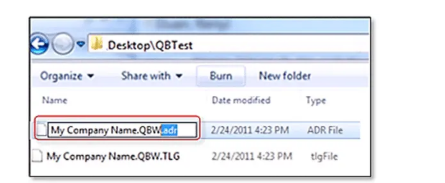
- Close QuickBooks Desktop.
- Open the folder where the original company file is stored.
- Locate the QuickBooks Auto Data Recovery folder.
- Look for the available .ADR recovery files.
- Identify the most recent recovery copy.
- Create a separate working copy of the recovery file.
- Follow QuickBooks’ supported ADR recovery process to reconstruct the company file.
- Open the recovered company file.
- Review the available accounting data.
- Compare important records with your latest known backup before using the recovered file as the primary company file.
Keep the original .QBW and ADR files unchanged throughout the recovery process.
Method 11: End Stuck QuickBooks Processes
QuickBooks processes can continue running even when the application is closed and can prevent opening of the company file if another attempt to open it is made.
Here is how to close the remaining QuickBooks processes:

- Make sure all users exit QuickBooks Desktop.
- Sign in to the server with a Windows administrator account.
- Press Ctrl + Shift + Esc to open Task Manager.
- Select the Details tab.
- Look for QuickBooks-related processes.
- Check for processes such as:
- QBW32.EXE
- qbupdate.exe
- QBDBMgrN.exe
- Select the applicable process.
- Click End Task.
- Repeat the process for other stuck QuickBooks processes.
- Restart QuickBooks Desktop and test the company file.
Method 12: Refresh QuickBooks Components With reboot.bat
The reboot.bat file is useful when the application acts oddly, as it refreshes certain QuickBooks program components.
Follow these steps to run the batch file:
- Close QuickBooks Desktop.
- Right-click the QuickBooks Desktop shortcut.
- Select Properties.
- Click Open File Location.
- Locate reboot.bat in the QuickBooks installation folder.
- Right-click reboot.bat.
- Select Run as administrator.
- Wait for the Command Prompt window to open and close.
- Restart your computer.
- Open QuickBooks Desktop.
- Try opening the company file again.
The location of reboot.bat can vary depending on your QuickBooks Desktop version and installation.
Method 13: Repair the QuickBooks Desktop Installation
If the company file opens fine on some other machine and only one installation is giving Error 6147, corrupted QuickBooks program files might be the source of the problem.
Use these steps to repair the QuickBooks installation:
- Close QuickBooks Desktop.
- Open Windows Settings.
- Go to Apps > Installed Apps.
- Find your QuickBooks Desktop installation.
- Select the available Repair or Modify option.
- Follow the on-screen instructions.
- Restart Windows.
- Open QuickBooks Desktop.
- Update QuickBooks if an update is available.
- Try opening the company file again.
How to Prevent QuickBooks Desktop Error Code 6147 in the Future?
You can reduce the risk of QuickBooks Error 6147 by maintaining the company file, using supported storage practices, and keeping QuickBooks properly updated and configured.
Here are the key practices to prevent Error 6147 from recurring:
- Keep the complete company file path short and avoid unnecessarily long folder structures.
- Use simple company and folder names without special characters or excessive spaces.
- Create and regularly verify QuickBooks company file backups.
- Store backup files on a reliable local drive before restoring them.
- Keep QuickBooks Desktop updated with the latest available maintenance releases.
- Set up firewall/antivirus exceptions when security software blocks some or all access to a QuickBooks file.
- Set correct folder permissions for users who require access to the company file.
- Use stable hosting and an appropriately configured network for multiuser company files.
- Run Verify Data periodically to catch company-file integrity problems early.
- Never close QuickBooks by clicking on the X or the close button when the application is processing your company data.
Conclusion
You can fix QuickBooks Error 6147 by running QuickBooks File Doctor, restoring the backup from a local drive, verifying and rebuilding the company file, renaming the .ND and .TLG files, checking the file path, and correcting network, hosting, permission, and security settings. If these methods do not resolve the issue, try ADR recovery, close stuck QuickBooks processes, refresh QuickBooks components, or repair the QuickBooks Desktop installation. If the error message 6147 in QuickBooks Desktop appears even after completing these troubleshooting methods, contact QuickBooks support or a certified QuickBooks expert.
Frequently Asked Questions
Can QuickBooks Error 6147 cause data loss?
Yes, Error 6147 can potentially lead to data-access problems, but the error itself does not necessarily mean that your accounting data is lost.
Yes, company-file corruption can be one possible reason QuickBooks displays Error 6147.
Does reinstalling QuickBooks delete my company data?
No, reinstalling the application normally does not delete your company file, but you should still maintain a backup before making installation changes.
Does QuickBooks Error 6147 affect all company files?
No, Error 6147 can affect a specific company file rather than every company file in your QuickBooks installation.
Can Error 6147 occur after a Windows update?
Yes, a Windows update can sometimes change permissions, security settings, or system components that affect QuickBooks Desktop.
How do I know whether the problem affects QuickBooks or my company file?
Try opening another company file on the same installation because if other files open normally, the affected company file is more likely to be the source.
Can I prevent QuickBooks Error 6147 from happening again?
Yes, regular backups, proper company-file management, stable network configuration, and timely QuickBooks maintenance can reduce the likelihood of recurrence.
Does QuickBooks Error 6147 affect QuickBooks Online?
No, Error 6147 is primarily associated with QuickBooks Desktop company-file access rather than QuickBooks Online.
Can an outdated QuickBooks version trigger Error 6147?
Yes, outdated QuickBooks Desktop components can contribute to compatibility and company-file access problems.
Should I create a backup before troubleshooting Error 6147?
Yes, creating a current backup before performing file repairs or recovery procedures helps protect your accounting data.
 +1-800-961-4963