
QuickBooks is a widely used accounting software that helps businesses manage invoices, payroll, expenses, and financial reporting in a centralized system. Despite its reliability, users often encounter technical disruptions, such as company file corruption, network connectivity failures, and multi-user access errors, that can interrupt critical financial operations. These issues typically arise from damaged data structures, improper hosting configuration, or system-level conflicts within QuickBooks Desktop environments.
To restore access and maintain workflow continuity, users rely on a specialized diagnostic utility like QuickBooks File Doctor to detect and repair such problems efficiently. In this guide, we’ll discuss installation steps, supported tool types, error-resolution capabilities, prerequisites, and the complete process for using QuickBooks File Doctor tool effectively.
What is QuickBooks File Doctor Tool?
QuickBooks File Doctor Tool is a built-in troubleshooting tool that helps users fix problems related to QuickBooks company files and network connectivity. It scans the company file for errors, checks the database structure, and repairs common issues that prevent QuickBooks Desktop from opening or working correctly. This QuickBooks error repair tool also identifies problems in multi-user mode setups and fixes hosting or network configuration errors that block access to shared company files. It helps run automated diagnostics and apply standard repair methods without requiring manual technical steps from the user.
Why Should You Use the QuickBooks File Doctor tool?
QuickBooks File Doctor plays a critical role in restoring system stability when company files or network configurations break down. Here are the benefits of using the QuickBooks File Doctor tool.
- Fixes QuickBooks 6000-series and H-series errors
The tool automatically detects and resolves common QuickBooks error codes such as 6000-series errors (for example -6000, -301, -6147) and multi-user H-series errors like H202 and H505. It removes access barriers that prevent company files from opening or syncing across users. - Restores multi-user network connectivity
It repairs communication issues between workstations and the server in multi-user environments. The tool adjusts hosting configurations and corrects firewall or port-related restrictions that block access to the shared company file. - Repairs damaged or corrupted company files
QuickBooks File Doctor scans the company file structure and identifies internal data corruption, missing records, or unreadable segments. It attempts to repair supported .QBW company file issues and restore accessibility. - Helps reduce the risk of data loss
The tool helps reduce the risk of data loss by addressing certain file-level and connectivity issues before they worsen. - Reduces troubleshooting time and technical dependency
It streamlines the repair process by automating diagnostics and fixes. Users avoid complex manual steps and resolve critical QuickBooks errors faster, keeping accounting operations uninterrupted.
What are the Steps to Download & Install QuickBooks File Doctor Tool?
To install QuickBooks File Doctor, users must first complete the setup of QuickBooks Tool Hub, since File Doctor runs through it. Follow the steps below for QuickBooks File Doctor download and install it correctly on your workstation.
- To begin with, the user must first shut down the QuickBooks software completely.
- The next step is to download the QuickBooks Tool Hub on the workstation.
- Thirdly, the user must save the file to the default location, which is the Downloads folder.
Note: The user can also choose a different location if preferred.) - Next, once the download of the QuickBooks Tool Hub program is complete, the user must navigate to File Explorer.
- After that, the next destination is the Downloads folder.
- Next, the user needs to locate the downloaded setup file by the name of QuickBooksToolsHub.exe.
- The user must then double-click on the file to start the installation process.
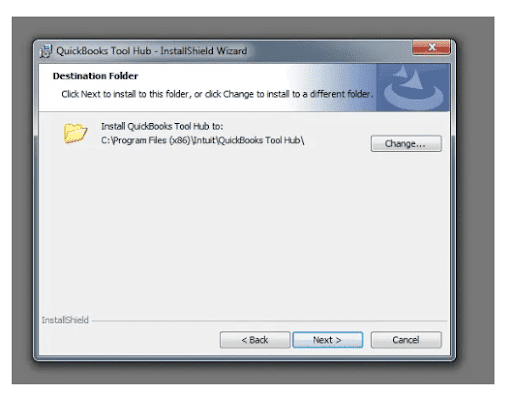
- Now, click on the ” Yes ” tab to accept the license agreement. Further, click on the next tab along with the install option.
- After the installation is complete, the user must navigate to the Windows Desktop.
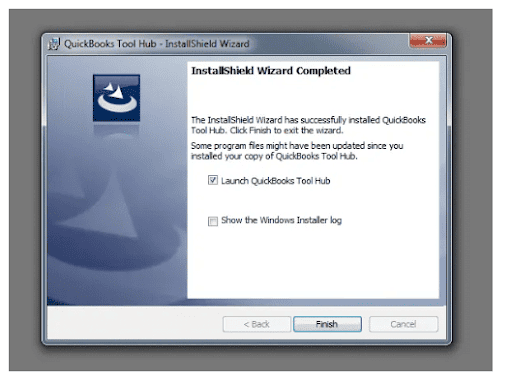
- The user has to double-click on the QuickBooks Tool Hub icon to open it.
What are the Prerequisites to Consider Before Using QuickBooks File Doctor?
Before running QuickBooks File Doctor, users must ensure the system, file, and access requirements are properly met. These conditions help the tool run smoothly and improve the success rate of file and network repairs.
| Category | Requirements |
| Data & File Requirements | Create a full backup before repair. Supported files include .QBW and .QBA. Large company files may increase scan time and reduce repair efficiency. |
| User Access Requirements | Log in as Windows Administrator. QuickBooks Admin credentials are required during the scan. |
| Software Conditions | Close all QuickBooks processes before running the tool. Use a single QuickBooks Desktop version to avoid conflicts. |
| Network Requirements | Maintain a stable internet connection for authentication and repair functions. |
| Tool Usage Rules | Run File Doctor via the latest QuickBooks Tool Hub. Use it only when company files or network issues prevent normal access. |
What are the Steps to Run the QuickBooks File Doctor Tool?
QuickBooks File Doctor runs through the QuickBooks Tool Hub and helps diagnose and repair company file and network-related issues in a structured sequence. Follow the steps below to run the QuickBooks file doctor tool.
- Open the QuickBooks Tool Hub application on your system.
- From the available options, select the Company File Issues section.
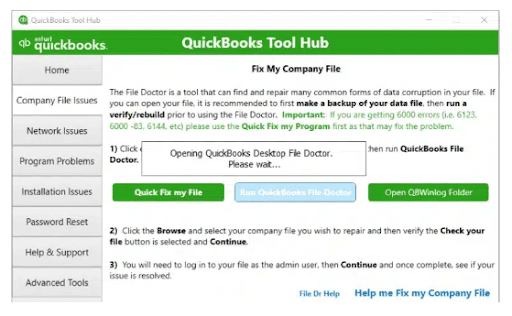
- Click on Run QuickBooks File Doctor to launch the tool.
- The tool interface will open on your screen and become ready for use.
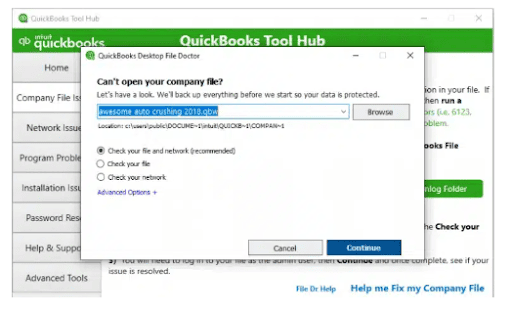
- Select the affected company file from the drop-down list shown on the screen.
- In case the file does not appear in the list, click on the Browse option to locate it manually.
- Navigate through your system folders to find the required company file.
- Choose the correct file and proceed to open it within the tool.
- Select the Check your File option displayed on the screen to begin diagnostics.
- Click Continue to move forward with the process.
- Select Next to start the scanning and repair operation.
- (Note: The scan duration depends on the file size and the level of issues present.)
- Once the process completes, the tool will display a confirmation message indicating that it has scanned the file and attempted necessary repairs.
- Reopen QuickBooks and access the company file to confirm whether the issues have been resolved successfully.
Tip: Older standalone versions of QuickBooks File Doctor may still exist on some systems, but Intuit primarily recommends using the Tool Hub version.
What to Do After QuickBooks File Repair is Completed?
After QuickBooks File Doctor completes the repair process, it is important to verify the company file, secure your data, and address any residual issues to ensure stable and error-free performance going forward.
| Problem | Quick Fix |
| Need to secure the repaired company file. | Create a backup of the company file and store it on a removable drive or secure location immediately after repair. |
| Lack of regular data protection | Schedule and maintain monthly backups of the QuickBooks company file to avoid unexpected data loss. |
| “File Doctor is not working” error appears. | Restore the company file from a recent backup or use Auto Data Recovery to rebuild damaged data. |
| Company file update conflict during repair | Ensure no updates or modifications are running while using File Doctor, then retry the process. |
| Improper or incomplete installation of QuickBooks components | Reinstall missing QuickBooks components or repair the installation before rerunning the tool. |
| Unable to restore backup files | Check backup integrity and use an alternate backup or recovery method if available. |
| Severe company file corruption | Use Auto Data Recovery or restore a clean backup copy of the company file. |
| Antivirus interference is affecting the repair. | Temporarily adjust or disable third-party antivirus settings during the repair process. |
| Network conflict due to the hosting mode | Turn off hosting mode on all systems except the server before running the repair again. |
Conclusion
QuickBooks File Doctor helps users fix company file corruption, network issues, and common QuickBooks errors quickly. It improves data stability and reduces downtime in accounting operations. Using the tool and following proper steps can help users maintain smooth QuickBooks performance and prevent recurring issues in their financial workflow.
 +1-800-961-4963