

The Gear icon in QuickBooks is the main access point for settings, company preferences, user management, lists, tools, and other account options. In QuickBooks Online, you can find the Gear icon in the upper-right corner of the screen. It opens options such as Account and Settings, Manage Users, Chart of Accounts, Products and Services, Import Data, Reconcile, and Audit Log.
Many users get confused because the Gear icon is a QuickBooks Online feature and is not available in QuickBooks Desktop. Desktop users access similar settings through different menus, such as Edit > Preferences and Company. This guide explains where to find the Gear icon in QuickBooks Online, what you can do with it, and where to find similar settings in QuickBooks Desktop.
Where Is the Gear Icon in QuickBooks Online?
The Gear icon is located in the upper-right corner of the QuickBooks Online screen, where it opens the Settings menu for company settings, users, lists, tools, and account options.
Check out the steps to find the Gear Icon in QuickBooks Online:
- Sign in to your QuickBooks Online account.
- Open your QuickBooks Online company.
- Look at the upper-right corner of the screen.
- Find the Settings gear icon (⚙) near the Notifications or Help icons.
Note: The exact toolbar layout can change
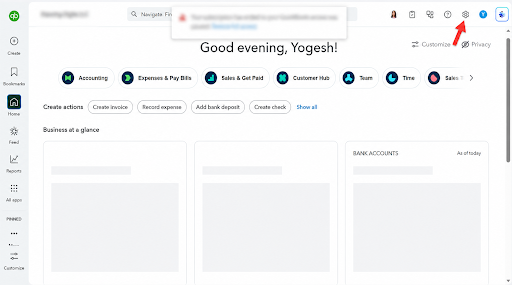
- Click the Gear icon to open the Settings menu.
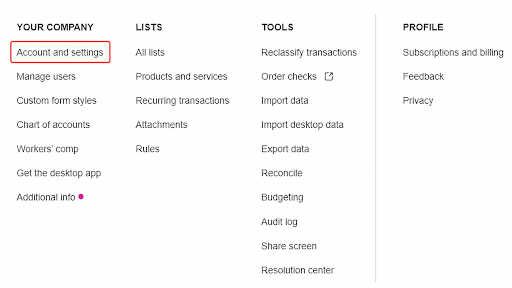
- Select Account and settings to access your company settings.
What Does the Gear Icon Look Like?
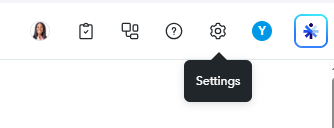
The QuickBooks Online Gear icon appears as a small cogwheel symbol in the upper-right area of the screen
How to Use the Gear Icon in QuickBooks Online
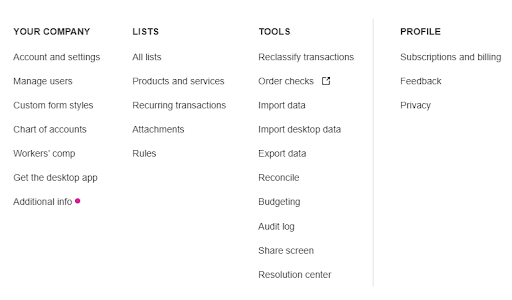
The Gear icon in QuickBooks Online opens key settings, user management options, company preferences, lists, tools, and account features.
Here’s what all you can use after clicking on this icon:
Access Account and Settings:
Select Account and Settings to update company information, billing, sales, expenses, payments, and advanced QuickBooks Online settings.
Manage Company Settings:
Use the available settings to update your company name, contact details, business information, accounting preferences, and other company-level options.
Manage Users:
Select Manage users to add users, change user access, manage permissions, and review the users who can access your QuickBooks Online company.
Manage Lists and Other Settings:
Use the Gear menu to access available lists and tools, such as Products and Services, Recurring Transactions, Custom Form Styles, Import Data, and Audit Log. Available options can vary by QuickBooks Online version and user permissions.
Note: The features shown above can change based on the latest updates made by Intuit.
What to Do If You Cannot Find the Gear Icon in QuickBooks Online?
Try these troubleshooting steps if the Gear icon is missing or unavailable.
- Confirm that you are using QuickBooks Online
- Refresh QuickBooks Online
- Check your browser
- Clear browser cache and cookies
- Check your user access
- Contact QuickBooks Support
Note: Check your user permission if the Gear icon appears, but certain options are missing; your user role or permissions may limit access to those features.
You may also read this: How to Set up Bank Feed in QuickBooks Online
Does QuickBooks Desktop Have a Gear Icon?
No, QuickBooks Desktop does not have a Gear icon. The Gear icon is available in QuickBooks Online, while QuickBooks Desktop provides similar settings through its own interface.
Why Does QuickBooks Desktop Not Have a Gear Icon?
QuickBooks Desktop does not have a Gear icon because it uses a different interface, with settings and tools organized through its desktop menus.
Where to Find Similar Settings in QuickBooks Desktop
QuickBooks Desktop does not have a single Settings or Gear icon. You can access settings through the Edit and Company menus.
- Open QuickBooks Desktop and your company file.
- Select Edit from the top menu.
- Select Preferences to access accounting, payroll, sales, reports, and other program settings.
- Select Company from the top menu to access company-related options and functions.
- Select Lists to access records such as the Chart of Accounts and other lists.
Also read this: How to Fix QuickBooks Search Not Working
QuickBooks Online vs QuickBooks Desktop Settings
The table below compares where to find settings and key management options in QuickBooks Online and QuickBooks Desktop.
| Feature | QuickBooks Online | QuickBooks Desktop |
|---|---|---|
| Settings access | Gear icon | Edit > Preferences and other menus |
| Gear icon | Available | Not available |
| Company settings | Gear > Account and settings | Edit > Preferences and other company-related menus |
| User management | Gear > Manage users | Available through Desktop user-management options |
| Lists and tools | Gear menu and other navigation menus | Lists and other menus |
Conclusion
In QuickBooks Online, the Gear icon in the upper-right corner provides access to company settings, administrative tools, user permissions, and lists. QuickBooks Desktop does not have a Gear icon. Instead, you can access many settings through menus such as Edit > Preferences. This guide helps you locate the Gear icon in QuickBooks Online and find the corresponding settings in QuickBooks Desktop.
 +1-800-961-4963