

QuickBooks Desktop displays the “The File Exists” error when it cannot access or update a required file. The error commonly appears during payroll updates, tax-related tasks, or when opening forms. This message can prevent QuickBooks from completing the requested action. This guide explains the common causes and shows you how to troubleshoot the error.
What Is the QuickBooks “The File Exists” Error?
The QuickBooks “The File Exists” error occurs when QuickBooks cannot access or update a required file. It commonly appears during payroll updates, tax-related tasks, or when opening state or federal forms. Permission restrictions and administrator settings are common causes of this error.
Users often see this message:
“The file you specified cannot be opened. Make sure that it is not being used by another program or is a read-only file. The Windows error was ‘The File Exists’.”
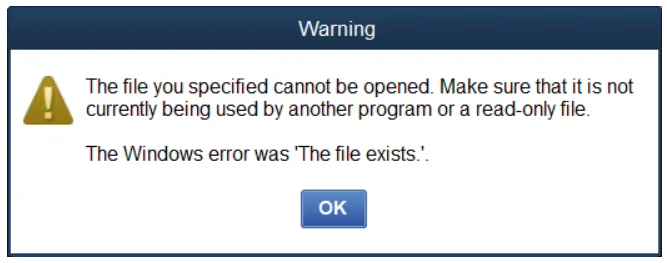
Why Does QuickBooks Show “QuickBooks Error: The File Exists?
The QuickBooks “The File Exists” error usually appears when QuickBooks cannot access, update, or work with a required file or system component. Several permission, program, update, printing, installation, and Windows-related issues may trigger the error.
Common causes include:
- QuickBooks lacks the rights to access required files or complete payroll tasks.
- The QuickBooks program file lacks proper user access.
- An older version lacks recent fixes and updates.
- Corrupted or missing components interfere with QuickBooks processes.
- Damaged files or folders prevent QuickBooks from accessing required components.
- A damaged printer settings file causes printing-related issues.
- Windows Firewall blocks QuickBooks programs or required connections.
- A damaged profile or permission problem affects QuickBooks access.
- Problems with QuickBooks-registered files affect updates and other processes.
Pre-Fix Checklist for the QuickBooks Error: The File Exists
Check a few basic settings before you start troubleshooting the QuickBooks file exists error. These checks help you avoid unnecessary changes and prepare QuickBooks for the repair process.
- Close QuickBooks Desktop before making changes or running repair tools.
- Confirm your QuickBooks version before updating or reinstalling.
- Ensure you have administrator rights to change permissions or install components.
- Back up your company file ahead of major changes.
- Use a stable internet connection for updates, Tool Hub, or installers.
- Check Windows Firewall settings if QuickBooks has connection issues.
- Keep the correct QuickBooks installer ready when uninstalling.
How to Fix QuickBooks Error The File Exists
You can resolve the QuickBooks “The File Exists” error by checking QuickBooks permissions, updating the application, repairing damaged program files, and addressing Windows or firewall-related issues. Follow the troubleshooting methods below one by one to fix the QuickBooks The File Exists error. Along with that, check QuickBooks after each method to identify the solution that works for your issue.
Method 1: Run QuickBooks as an Administrator
Running QuickBooks with administrator rights gives the application the permissions it needs to access required files. This step often resolves the “The File Exists” error during payroll updates or other QuickBooks tasks.
- Close QuickBooks Desktop if it is open.
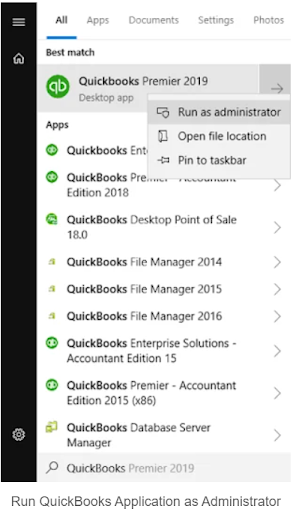
- Click the Windows icon and search for QuickBooks.
- Right-click your QuickBooks Desktop version.
- Select Run as administrator.
- Open your company file.
- Run the payroll update or repeat the task that triggered the error.
- Close QuickBooks after you complete the task.
- Open QuickBooks normally and check whether the error appears again.
Method 2: Update Windows Permissions for QuickBooks
QuickBooks needs proper Windows permissions to access its program files. Update the security permissions for the QuickBooks executable file to give the required users full access.
- Click the Windows icon and search for File Explorer.
- Open File Explorer and locate the QuickBooks installation folder.
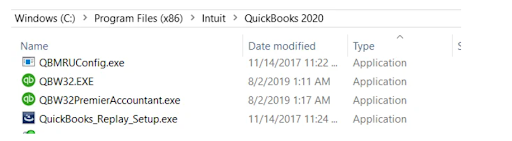
- Find the QBW32.EXE file:
- 32-bit: C:\Program Files\Intuit\QuickBooks (year)
- 64-bit: C:\Program Files (x86)\Intuit\QuickBooks (year)
- Right-click QBW32.EXE and select Properties.
- Open the Security tab and select Edit.
- Click Add and enter Everyone.
- Select OK and enable Full control.
- Click Add again and enter Users.
- Select OK and enable Full control.
- Click Apply and then select OK.
- Open QuickBooks and repeat the task that caused the error.
Method 3: Rename the QBPrint.qbp File for Printing Issues
A damaged QBPrint.qbp file affects QuickBooks printer settings and may cause errors during printing. Rename this file so QuickBooks can create a fresh copy with default printer settings.
- Close QuickBooks Desktop.
- Press Windows + E to open File Explorer.
- Navigate to the QuickBooks folder under C:\ProgramData\Intuit\QuickBooks.
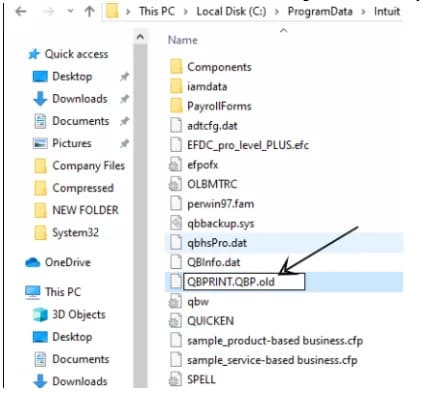
- Locate the QBPrint.qbp file.
- Right-click the file and select Rename.
- Rename it to QBPrint.qbp.old.
- Open QuickBooks Desktop.
- Go to File > Printer Setup.
- Select the required form under Form Name.
- Click OK to save the printer settings.
- Try printing the transaction or form again.
Method 4: Update QuickBooks Desktop
An outdated QuickBooks installation sometimes interferes with payroll and other application processes. Install the latest available update to keep QuickBooks components current and resolve update-related issues.
- Close your QuickBooks company file.
- Right-click the QuickBooks Desktop icon.
- Select Run as administrator.
- Open QuickBooks without opening a company file.
- Go to Help >> Update QuickBooks Desktop.
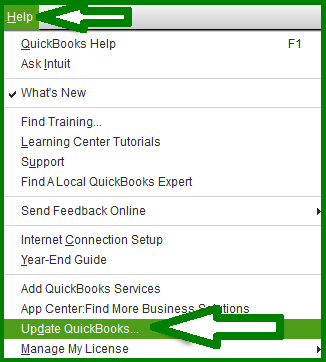
- Select the Update Now tab.
- Check Reset Update.
- Click Get Updates.
- Close and reopen QuickBooks after the download finishes.
- Select Yes when QuickBooks asks you to install the update.
- Restart your computer after the installation completes.
- Open QuickBooks and check the error again.
After following the above steps, you will be able to resolve the QuickBooks Desktop The File Exists error.
Method 5: Run the QuickBooks Reboot.bat File
The Reboot.bat file re-registers QuickBooks program files and related components. Run this utility to refresh these components and resolve certain QuickBooks installation or update issues.
- Close QuickBooks Desktop.
- Right-click the QuickBooks icon.
- Select Properties.
- Click Open File Location.
- Locate the reboot.bat file in the QuickBooks installation folder.
- Right-click reboot.bat.
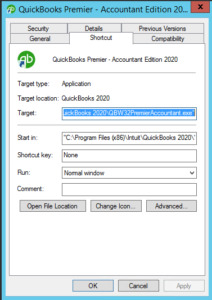
- Select Run as administrator.
- Wait while the Command Prompt window processes the QuickBooks files.
- Let the window close automatically after the process finishes.
- Restart your computer.
- Open QuickBooks and check whether the “The File Exists” error persists.
Method 6: Repair QuickBooks Using QuickBooks Tool Hub
QuickBooks Tool Hub provides built-in utilities that help repair common program and installation problems. Run Quick Fix my Program or the QuickBooks Install Diagnostic Tool to refresh damaged program components.
- Close QuickBooks Desktop.
- Download and install the latest QuickBooks Tool Hub.
- Open QuickBooks Tool Hub.
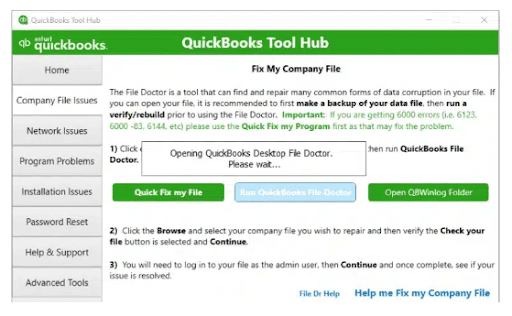
- Select Program Problems.
- Click Quick Fix my Program.
- Wait for the tool to complete the repair.
- Open QuickBooks and check the error.
- If the issue continues, open QuickBooks Tool Hub again.
- Select Installation Issues.
- Click QuickBooks Install Diagnostic Tool.
- Let the tool complete the repair process.
- Restart your computer.
- Open QuickBooks and try the same task again.
Intuit currently recommends Quick Fix my Program for program issues and the Install Diagnostic Tool for installation-related problems.
Method 7: Reinstall QuickBooks Desktop
A fresh QuickBooks installation replaces damaged or missing program components. Use this method when repair tools and permission changes fail to resolve the error.
- Open the Windows Start menu.
- Search for Control Panel and open it.
- Select Programs and Features.
- Find your QuickBooks Desktop version.
- Select Uninstall and follow the on-screen instructions.
- Restart your computer after removing QuickBooks.
- Download the QuickBooks Desktop installer for your product and version.
- Run the installer and follow the setup instructions.
- Complete the installation.
- Open QuickBooks and check whether the error is resolved.
Method 8: Configure Windows Firewall for QuickBooks
Firewall restrictions sometimes prevent QuickBooks components from communicating correctly. Add the required QuickBooks ports to Windows Firewall to prevent the firewall from blocking these connections.
- Open the Windows Start menu.
- Search for Windows Firewall and open it.
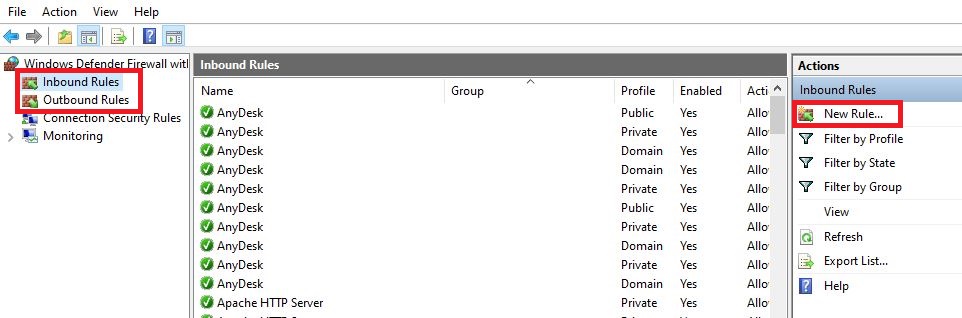
- Select Advanced Settings.
- Right-click Inbound Rules and select New Rule.
- Choose Port and select Next.
- Select TCP.
- Enter the ports required for your QuickBooks Desktop version.
- Select Allow the Connection.
- Select the appropriate network profiles.
- Enter a name for the rule, such as QuickBooks Ports.
- Select Finish.
- Repeat the same process under Outbound Rules.
- Restart your computer.
- Open QuickBooks and check the error.
Intuit provides specific firewall-port instructions and notes that QuickBooks Desktop 2019 and later use dynamic ports. The exact port depends on the QuickBooks version installed on your computer.
Method 9: Add QuickBooks Programs to Windows Firewall Exceptions
Adding QuickBooks executable files as firewall exceptions gives those programs permission to communicate through Windows Firewall. Use this method when firewall restrictions affect QuickBooks operations.
- Open the Windows Start menu.
- Search for Windows Firewall and open it.
- Select Advanced Settings.
- Choose Inbound Rules.
- Select New Rule.
- Choose Program and select Next.
- Browse to the required QuickBooks executable file.
- Select Allow the Connection.
- Choose the applicable network profiles.
- Enter a name for the rule.
- Select Finish.
- Repeat the process under Outbound Rules for the required QuickBooks programs.
- Restart your computer.
- Open QuickBooks and test the task again.
Intuit lists QuickBooks executable files that you may need to allow through the firewall, including QBDBMgrN.exe, QBServerUtilityMgr.exe, QBCFMonitorService.exe, QBLaunch.exe, and QBUpdate.exe.
Method 10: Repair QuickBooks Desktop Installation
Repair QuickBooks to replace damaged program components without removing the entire application. This process fixes issues caused by corrupted or missing QuickBooks files.
- Close QuickBooks Desktop.
- Open the Windows Start menu and search for Control Panel.
- Select Programs and Features or Uninstall a Program.
- Find and select your QuickBooks Desktop version.
- Click Uninstall/Change.
- Select Repair and then click Next.
- Follow the instructions shown on the screen.
- Wait for the repair process to finish.
- Restart your computer.
Method 11: Create a New Windows Administrator Account
A damaged Windows user profile or permission issue sometimes interferes with QuickBooks. Create a new administrator account to help determine whether the problem comes from the existing Windows profile.
- Open the Windows Start menu and select Settings.
- Go to Accounts.
- Select Other users.
- Click Add account.
- Follow the on-screen instructions to create a new Windows user.
- After creating the account, select the new user under Other users.
- Choose Change account type.
- Select Administrator from the account type menu.
- Click OK.
- Sign out of your current Windows account.
- Sign in with the new administrator account.
How to Prevent the QuickBooks “The File Exists” Error
You can reduce the chances of encountering the QuickBooks “The File Exists” error by keeping QuickBooks, Windows permissions, and related program components in good working condition.
- Install the latest QuickBooks updates to receive bug fixes and program improvements.
- Give QuickBooks the required access to its program files.
- Use administrator privileges when QuickBooks needs elevated access for specific tasks.
- Avoid manually deleting or modifying QuickBooks program files.
- Make sure Windows Firewall does not block required QuickBooks programs.
- Store recent backups before making major changes to QuickBooks.
- Address printing issues promptly instead of repeatedly retrying failed print tasks.
- Download the installer that matches your QuickBooks Desktop version and license.
- Install important Windows updates and keep your Windows user profile accessible.
Conclusion
The QuickBooks Error The File Exists usually indicates an issue with file access, program components, updates, printing, installation, or Windows settings. Start by checking administrator access and Windows permissions. Then update or repair QuickBooks if the error persists. Use the remaining methods to address printing issues, firewall restrictions, damaged program files, and installation problems. Choose the method that matches your situation and keep QuickBooks updated for smooth operation.
Frequently Asked Questions
Why does QuickBooks show “The File Exists” during a payroll update?
QuickBooks may display the error during a payroll update when it lacks the required permissions to access or update certain program files. Running QuickBooks as an administrator and updating Windows permissions are the primary troubleshooting steps.
How do I fix the QuickBooks “The File Exists” error?
Start by running QuickBooks as an administrator. Then check the Windows permissions for the QuickBooks program file. Update QuickBooks and use QuickBooks Tool Hub if the error continues.
Can an outdated QuickBooks version cause the “The File Exists” error?
An outdated QuickBooks version sometimes creates compatibility or program issues. Install the latest available update and restart QuickBooks before trying the affected task again.
How do I fix the error when it appears while printing?
Rename the QBPrint.qbp file and allow QuickBooks to create a new printer settings file. This method specifically addresses printing-related issues.
Can Windows Firewall cause the QuickBooks “The File Exists” error?
Firewall restrictions sometimes interfere with QuickBooks programs and network connections. Check the required QuickBooks ports and add the necessary QuickBooks programs to the Windows Firewall exceptions.
What should I do if QuickBooks Tool Hub does not fix the error?
Try repairing or reinstalling QuickBooks Desktop after using the Tool Hub. Create a backup of your company file before making major installation changes.
Should I create a new Windows administrator account to fix the error?
Use a new administrator account as a last troubleshooting step. This approach helps identify problems caused by the existing Windows user profile or its permissions.
 +1-800-961-4963